How to save files from Canva for print
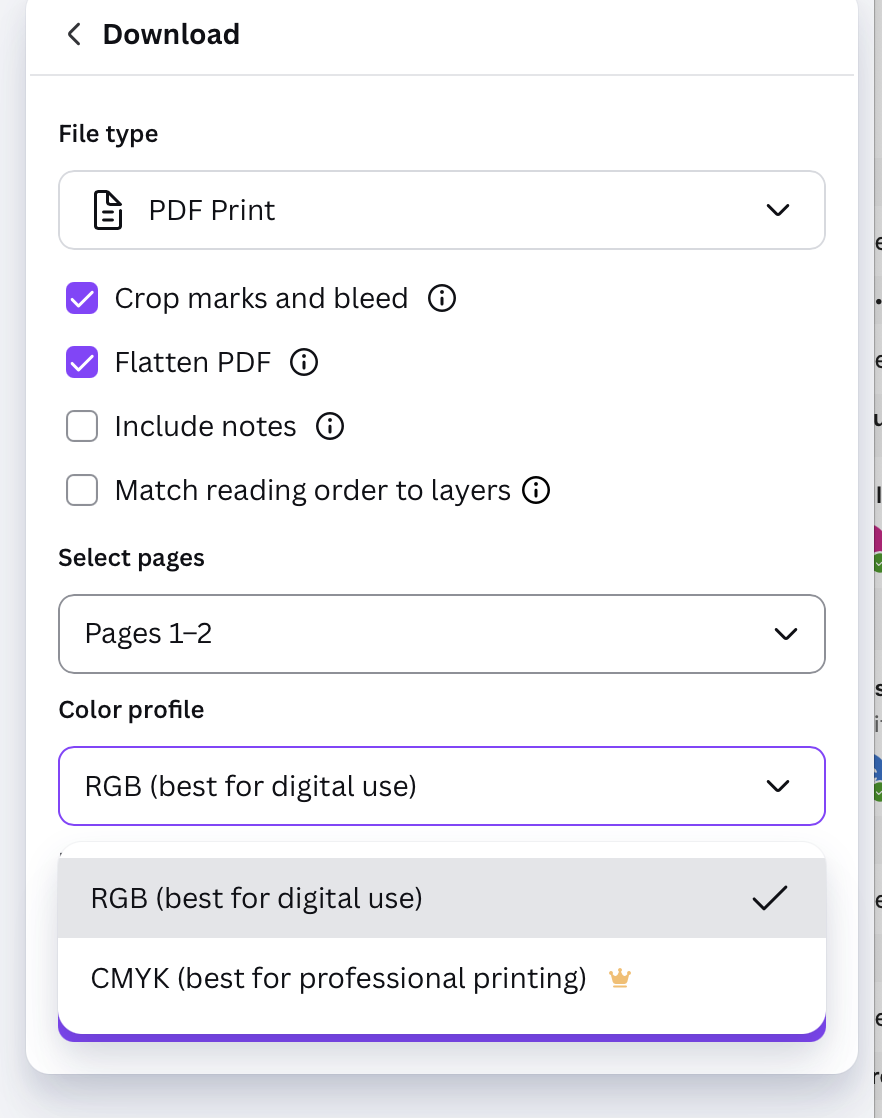
When saving a file in Canva for print, set your document to include bleed and export as a PDF with crop marks by checking "Crop marks and bleed" in the download options; flatten artboards and images by exporting as a PDF print (this embeds and flattens layers), and choose CMYK if available — Canva Pro allows PDF/X-1a which is suitable for commercial printing and preserves CMYK output; if you only have a free account, export as high-resolution PDF in RGB but be aware RGB files can shift colour when converted to CMYK at the press, so expect possible colour variation and always proof colours where critical.